 DASAPT
 Xinren Chen
Draw a concentration iso-surface on an open reconstruction, then add a second surface for another ion.
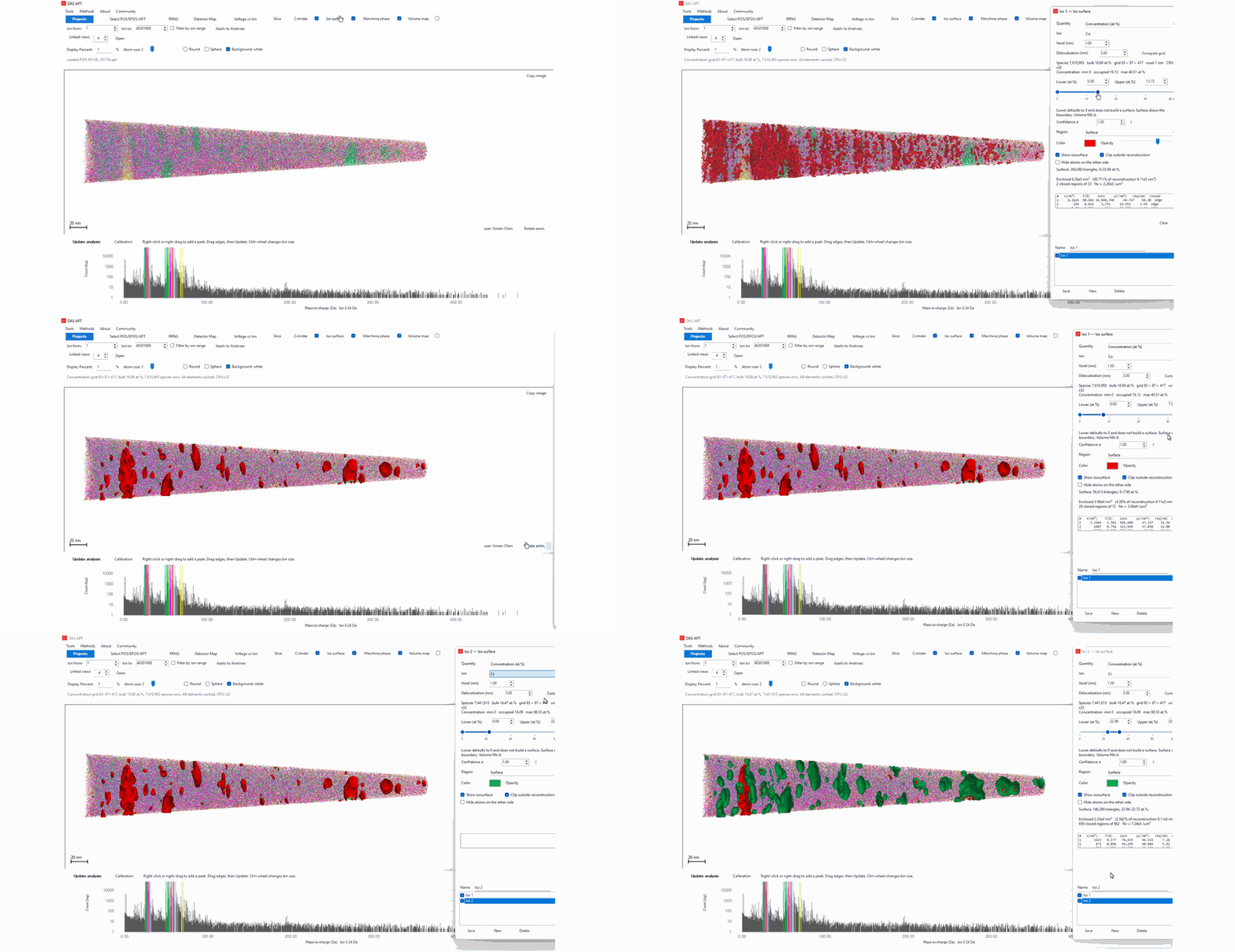
- Open a reconstructed dataset with Select POS/EPOS/APT. Iso-surface needs reconstruction coordinates.
- On the toolbar, check Iso surface. The Iso 1 panel opens on the right.
- Leave Quantity on Concentration (at.%). Choose the ion. In this example the first surface is Co. Voxel is 1.00 nm and Delocalization is 3.00 nm.
- Click Compute grid. The status line reports the calculation. When it finishes, the panel shows the ion count, the bulk concentration, and the grid size. The first surface uses Lower 0 and Upper 20 at.%, so it covers most of the tip. A lower value of 0 does not draw a boundary.
- Drag Lower up. The red surface shrinks onto the Co-rich regions. The panel lists the triangle count, the enclosed volume and its share of the reconstruction, and one row for each closed region: volume, concentration, ion count, ions per nm³, and equivalent radius.
- Show isosurface turns the mesh on or off. Clip outside reconstruction keeps it inside the tip. Color and Opacity change the drawing. Region can be Surface, which draws the boundary, or Volume, which fills it.
- Close the panel and click Rotate anim. to spin the reconstruction with the surface. That dialog can save the spin as a GIF or an MP4.
- Open Iso surface again. Click New for Iso 2. Set Ion to the next species, here Cr, pick another color, and click Compute grid. After the first grid, changing the ion recomposes that surface from the cached ions.
- Raise Lower and set Upper so the new surface sits on the Cr-rich regions. Both surfaces stay in the list. Save keeps the current one. Delete removes it. Clear removes the mesh from the view.
0 comments
Sign in to comment.